You have your slides. Now what do you actually say?
This is the moment most presenters dread. The slide deck is done — the design looks good, the content is there — but when you sit down to practise, you realise you have no idea what to say on each slide.
Bullet points on a slide are not a script. They're reminders. When you're standing in front of an audience, reminders aren't enough. You need actual words — sentences you can deliver confidently, timed to fit your slot, and written in language that sounds natural when spoken out loud.
This guide covers three ways to convert your slides into a full speaking script, compares them honestly, and helps you pick the right method for your situation.
Why you need a speaking script (not just speaker notes)
Most presentation tools offer "speaker notes" — a small text box below each slide where you jot down reminders. For experienced speakers, that works. For everyone else, it's a trap.
Here's the problem: speaker notes are written in the same way you'd write a to-do list. Short. Fragmented. Missing connective tissue. When you try to speak from them, you end up ad-libbing between points — and that's exactly when presenters stumble, rush, lose their place, or go over time.
A proper speaking script solves this because:
Every word is chosen in advance. No blanking under pressure, no searching for the right phrase mid-sentence.
Timing is built in. A written script lets you calculate exactly how long each slide takes — so you never run over.
It's written for the ear, not the eye. Good scripts use shorter sentences, conversational language, and natural transitions — completely different from written prose.
You can rehearse it to sound natural. The goal isn't to read robotically — it's to practise until the words feel like your own. The script is the rehearsal tool.
So how do you get from a slide deck to a complete speaking script? Here are the three main methods.
Method 1 — Write your script manually
Time required: 2–4 hours for a 20-minute presentation
Best for: High-stakes presentations where every word must be custom-crafted
Skill level: Any
The oldest method — and still the most thorough. Open a blank document, go through your slides one by one, and write what you want to say for each one.
How to do it well
The most common mistake is writing the way you'd write an essay — formal, long sentences, passive voice. Scripts written like essays sound robotic when delivered. Instead, write the way you'd explain the slide to a friend:
Use short sentences — three to ten words each
Start with a hook or question on your most important slides
Write transitions between slides explicitly: "So that brings me to..." or "Here's where it gets interesting..."
Read every sentence out loud as you write it — if you stumble reading it, rewrite it
Use 130 words per minute as your target. A 15-minute presentation = ~1,950 words total
The honest downsides
Manual scripting takes a long time. For a 20-minute presentation with 15 slides, you're looking at a full afternoon of work — and that's before you factor in revisions and rehearsal. It also requires you to already know what you want to say, which is harder than it sounds when you're staring at a slide about methodology or financial projections.
Manual scripting is the right choice when: Your presentation is for a career-defining moment (a PhD defense, a funding pitch, a keynote), and you have 3–5 hours to dedicate to it. For anything more routine, the time cost isn't worth it.
Method 2 — Use ChatGPT or Claude manually (slide by slide)
Time required: 30–60 minutes for a 20-minute presentation
Best for: People comfortable with AI tools who don't mind a multi-step process
Skill level: Intermediate
The modern workaround that many presenters now use: copy the text from each slide, paste it into an AI chatbot, and ask it to write a speaking script for that slide. Repeat for every slide.
A typical prompt that works
"Here is the content from slide 3 of my presentation: [paste slide content]. This is a 20-minute presentation with 15 slides, so this slide should take about 1.5 minutes to deliver. Write a natural, word-for-word speaking script for this slide that sounds conversational — not like a formal essay. Write it in first person as if I'm speaking directly to an audience of [describe your audience]."
This approach is significantly faster than writing from scratch, and modern AI models write well-structured spoken prose. You can also ask it to adjust tone, shorten or extend timing, or rewrite in a different style.
The honest downsides
There are three real problems with this method:
1. It only reads text. When you paste slide content into a chatbot, it can't see your slide's actual layout, charts, diagrams, or images. If your slide has a bar chart showing revenue growth, you have to describe that chart in your paste — otherwise the AI writes a script that ignores your most important visual.
2. It's still a manual process per slide. For a 15-slide presentation, you're doing 15 separate copy-paste-prompt cycles. The AI doesn't know about your other slides, so it can't write smooth transitions between them or maintain a consistent voice across the whole deck.
3. Timing is inconsistent. You have to manually calculate word counts per slide and instruct the AI on timing for each one separately. It's easy to end up with some slides that are 45 seconds and others that are 3 minutes — which throws off your whole presentation.
This method is the right choice when: You have a small deck (under 8 slides), your slides are text-heavy with minimal charts or visuals, and you're comfortable prompting AI tools.
Method 3 — Use a dedicated slide-to-script tool
Time required: 2–5 minutes to generate, then review and refine
Best for: Anyone who wants a complete script fast — especially for visual, chart-heavy decks
Skill level: Any — no technical knowledge needed
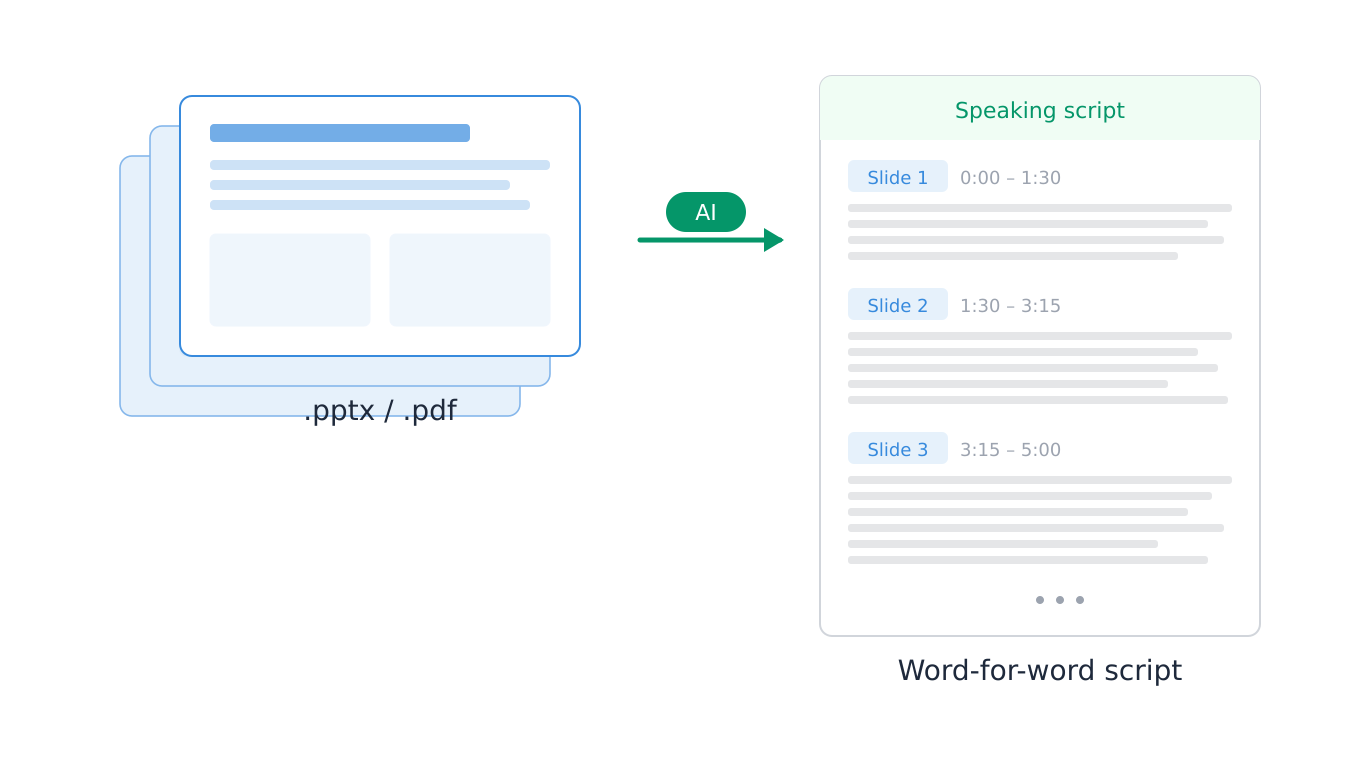
A dedicated tool built specifically for converting slide decks into speaking scripts handles everything that the manual methods can't: it reads your actual slides visually (not just the text), calculates timing across all slides automatically, and produces a complete script in a single step.
SlideScript is built exactly for this. You upload your PDF slide deck, set your total speaking time, choose your language, and it generates a complete word-for-word script — timed slide by slide, with natural transitions — using Claude by Anthropic, one of the most capable AI models available.
What makes a dedicated tool different from a chatbot
The key difference is that SlideScript uses native PDF vision — it actually sees your slides the way a human would, including charts, diagrams, images, and layout. A general-purpose chatbot like ChatGPT or Claude only reads the text you paste in. If your slide is mostly a graph, the chatbot writes a generic script. SlideScript reads the graph.
It also handles timing automatically. You tell it your total presentation duration, and it distributes the time intelligently across every slide — giving more time to complex slides with a lot to explain, and less to simple title or transition slides. You don't have to calculate a single word count.
What the output looks like
For each slide, you get:
A full speaking script — complete sentences, not bullet points
A precise time range (e.g. "0:00 — 1:45")
Natural transitions that connect each slide to the next
Language that sounds spoken, not written
After generation, you can refine any individual slide with a plain-English instruction — "make this sound more confident," "shorten this to 30 seconds," "add a real-world example here" — without touching the rest of your script.
The free tier requires no signup and supports up to 15 slides. Paid plans unlock longer decks, more refinements, and Scout — an AI presentation coach that gives you slide-by-slide feedback on your script.
This method is the right choice when: You want a complete, ready-to-rehearse script as fast as possible — especially for visual decks, multi-slide presentations, or when you're working close to a deadline.
Side-by-side comparison
Method Time to script Reads visuals? Auto-times slides? Best for Manual writing 2–4 hours ✅ You can ❌ Manual Career-defining moments ChatGPT / Claude (manual) 30–60 minutes ❌ Text only ❌ Manual per slide Small, text-heavy decks SlideScript 2–5 minutes ✅ Full PDF vision ✅ Automatic Any deck, any deadline
Which method should you use?
The honest answer depends on your situation:
If you have 3–5 hours and it's a career-defining presentation — write it manually. The process of writing forces you to deeply understand your own material, which shows in delivery.
If you have 1 hour and a small text-heavy deck — the ChatGPT/Claude manual method is a reasonable middle ground. Budget time for the repetitive copy-paste cycle.
If you have a visual deck, more than 8 slides, or less than an hour — use a dedicated tool. The time savings are too significant to ignore, and the quality of a purpose-built tool beats the manual chatbot approach for anything chart or image-heavy.
For most people most of the time — students, professionals, founders, researchers — a dedicated tool is the practical choice. It gets you from slides to a rehearsal-ready script before you'd even finish writing slide 3 manually.
Try it on your deck right now
Upload your PDF to SlideScript, set your duration, and get a complete word-for-word speaking script in minutes. Free, no signup required, supports 34 languages.
The script you get is ready to rehearse from immediately — not a rough draft you have to rewrite, but a complete, timed, natural-sounding script for every slide in your deck.