You've finished your slides. The design looks great, the data is solid, and you're feeling good about the content. Then it hits you — what are you actually going to say?
Most people get stuck right here. They stare at their slides and try to wing it, scribble some bullet points on a notecard, or spend hours writing out a script word by word. None of these approaches work particularly well, especially when you're presenting something that matters — a thesis defense, a client pitch, or a conference talk.
There's a better way. You can now turn your PPT into a complete, timed speaking script using AI — and it takes the hardest part of presentation prep off your plate entirely.
Why You Need a Script, Not Just Bullet Points
There's a common belief that good presenters don't use scripts. That's misleading. What good presenters don't do is read scripts. But most of them write scripts — or at least detailed outlines — during preparation.
A full speaking script helps you figure out your exact phrasing before you're standing in front of people. It forces you to think through transitions between slides. It reveals whether your 20-slide deck actually fits into a 10-minute time slot or if you're going to run 5 minutes over.
Bullet points don't do any of this. They leave too much to improvisation, and improvisation under pressure usually means rambling, filler words, and awkward pauses.
How Long Should a Presentation Script Be?
One of the most common questions presenters ask is how many words they need for a given time slot. The answer depends on your speaking pace, but most presenters land between 120 and 150 words per minute during a real presentation — slower than normal conversation because you're pausing for emphasis, transitions, and audience reactions.
Here's a quick reference:
5-minute presentation: 600–750 words
10-minute presentation: 1,200–1,500 words
15-minute presentation: 1,800–2,250 words
20-minute presentation: 2,400–3,000 words
30-minute presentation: 3,600–4,500 words
These numbers assume a comfortable pace with natural pauses. If you're the type who speaks quickly when nervous, aim for the lower end — it gives you breathing room and keeps you from rushing through your key points.
For slide-based presentations specifically, you also need to factor in how many slides you have. A 10-minute presentation with 8 slides gives you roughly 75 seconds per slide. A 10-minute presentation with 20 slides gives you 30 seconds each — barely enough to make a single point before clicking forward.
The Problem With Writing Your Own Script
Writing a presentation script from scratch is tedious. You're essentially doing two jobs: deciding what to say (content strategy) and deciding how to say it (scripting). For most people, the slides already contain the what — the key data, the arguments, the structure. What's missing is the spoken layer on top.
This is where the process breaks down. You know your slides. You know the content. But translating visual slides into natural-sounding spoken words is a different skill entirely. It requires writing in a conversational tone, adding transitions that don't sound forced, and somehow making technical content sound engaging when read aloud.
It's also hard to pace yourself. Even experienced speakers misjudge how long their content will take. You write what feels like a solid 10-minute script, practice it once, and realize it's either 7 minutes (too thin) or 14 minutes (way too dense).
How AI Changes This: PPT to Script in a Few Clicks
This is the core idea behind a new category of AI tools — specifically, tools that take your existing presentation slides and generate a word-for-word speaking script from them.
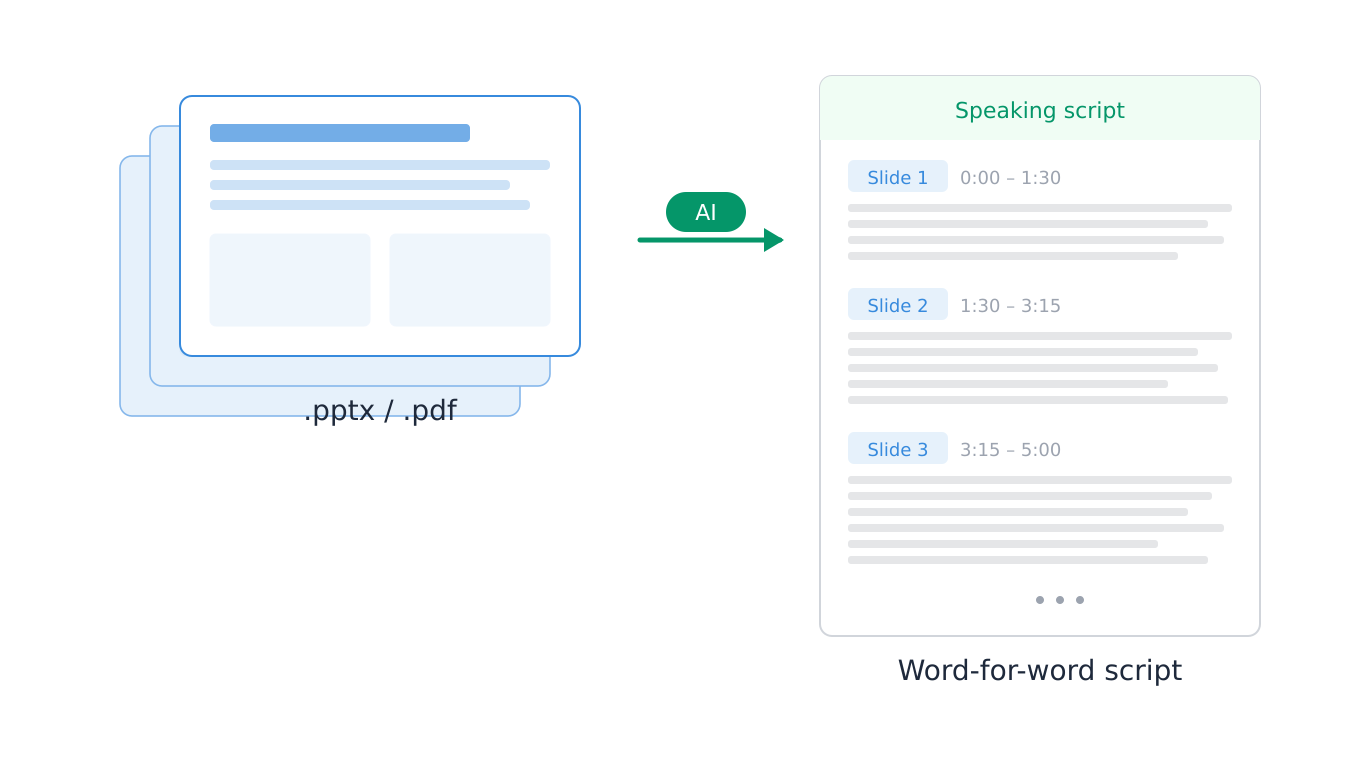
The process is straightforward: you upload your slide deck — either as a PowerPoint file (.pptx) or PDF — set your target duration and preferred language, and the AI analyzes every single slide. It reads the text, interprets charts and diagrams, understands the visual layout, and then writes a complete speaking script — timed per slide — that you can use as-is or refine to match your voice.
This is fundamentally different from AI presentation makers like Canva or SlidesAI, which generate slides from your text. Those tools solve the design problem. What we're talking about here solves the delivery problem — you already have great slides, you just need to know what to say when presenting them.
What a Good AI Script Generator Should Do
Not all AI tools handle this well. If you're looking for something that genuinely converts your PPT into a usable script, here's what to look for:
Read your actual slides, not just text. Your slides contain charts, images, diagrams, and visual layouts — not just bullet points. The AI needs to understand all of it to write a script that references what your audience is actually seeing.
Time each slide individually. A generic "here's 1,500 words for 10 minutes" dump isn't helpful. You need per-slide timing so you know exactly how long to spend on slide 3 versus slide 12 — because a title slide needs 15 seconds and a data-heavy slide might need 90.
Write in a natural speaking voice. The script should sound like something a human would actually say out loud, not like a textbook summary. Transitions between slides matter. Opening lines matter. The difference between "This slide shows Q3 revenue data" and "So let's look at where we landed in Q3" is the difference between a boring presentation and an engaging one.
Support your language. If you're presenting in Japanese, Spanish, or Bahasa Melayu, the script should be written natively in that language — not translated from English.
Accept your file format directly. You shouldn't have to convert your PowerPoint to PDF before uploading. A good tool accepts .pptx files natively so you can go straight from your slide editor to a finished script.
SlideScript: Built Exactly for This
SlideScript is purpose-built for converting presentation slides into speaking scripts. It's the only tool specifically designed for this workflow, and it handles everything described above.
Here's how it works:
1. Upload your slides. Drop your PowerPoint (.pptx) or PDF slide deck — or up to 5 files if your presentation spans multiple decks. SlideScript detects every slide automatically. No need to convert formats first — upload your PPT directly.
2. Set your parameters. Choose your total presentation duration (in minutes) and your output language. SlideScript supports 34 languages.
3. Get your script. AI analyzes every slide — text, images, charts, everything — and generates a complete word-for-word speaking script with per-slide timing. No bullet points. No outlines. A real, full script.
4. Refine with AI. Don't like how a particular slide's script sounds? Click Refine and tell the AI what to change in plain language: "Make this more conversational" or "Add a statistic about market growth here." The AI rewrites just that slide.
5. Get coached by Scout. Scout is an AI presentation coach built into SlideScript. Open Scout on any slide, and it analyzes your script for delivery quality — what's working, what could improve, and specific prompts you can use to make it better. It's like having a speaking coach review your script slide by slide.
6. Download and present. Export your finished script as TXT, DOCX, or PDF. Practice with it, memorize the key sections, and walk into your presentation knowing exactly what you're going to say.
Who Uses This?
SlideScript was built for anyone who already has slides and needs a speaking script — which turns out to be a lot of people:
Students defending a thesis who need to present their research clearly within a strict time limit
Professionals giving client presentations who want to sound polished and prepared without memorizing everything
Conference speakers who need their talk timed precisely to a 15 or 20-minute slot
Sales teams running pitch decks where every word counts
Non-native speakers who want a script in their own language based on English slides (or vice versa)
Anyone who gets nervous and wants the security of knowing exactly what to say on every slide
Free Tier — No Signup Required
You can try SlideScript without creating an account. The free tier handles up to 15 slides per session, includes AI refinement, and outputs the same full speaking script. No credit card, no email, no signup wall. Upload your PPT or PDF and get your script.
Paid tiers unlock longer presentations (up to 100 slides), more refinement options, unlimited Scout coaching, and the premium AI model for even higher script quality.
Tips for Using Your AI-Generated Script
Getting the script is step one. Here's how to make the most of it:
Practice out loud at least twice. Reading silently and speaking aloud are completely different experiences. You'll catch awkward phrasing, tongue-twisters, and timing issues that look fine on paper but feel wrong when spoken.
Mark your emphasis points. Go through the script and underline or bold the words you want to stress. This prevents the monotone delivery that comes from reading a script flat.
Don't memorize word-for-word. The script is your safety net, not your cage. Know the key phrases and transitions for each slide, but let yourself deviate naturally. The script ensures you always have something solid to fall back on if you lose your train of thought.
Use the per-slide timing as a rehearsal guide. If your script says slide 7 should take 45 seconds and you're spending 2 minutes on it during practice, that's a sign to either cut content or adjust your pacing.
Refine the opening and closing. These are the highest-impact moments of any presentation. Spend extra time making your first and last slides sound exactly the way you want. Use SlideScript's refine feature on these slides specifically — tell the AI to make the opening more engaging or the closing more memorable.
The Bottom Line
Your slides are done. The hard part of content creation is behind you. Don't let the scripting phase become a bottleneck that eats hours of your time or, worse, leads you to wing it on presentation day.
AI-powered tools can now read your actual slides and write a complete, timed speaking script that sounds natural and fits your exact time slot. It's the fastest way to go from finished slides to presentation-ready — and it means you can spend your prep time on what actually matters: practicing your delivery.